
I’ve spent years teaching people how to set up tracking properly, and YouTube has always been the awkward one. It’s one of the biggest traffic sources a lot of businesses have, and yet in most GA4 properties I look at, it barely shows up. Some of it lands as youtube.com / referral. A lot of it gets lumped into “direct” because the click came from the YouTube app and the referrer got lost on the way. Either way, you can’t tell which video actually made you money.
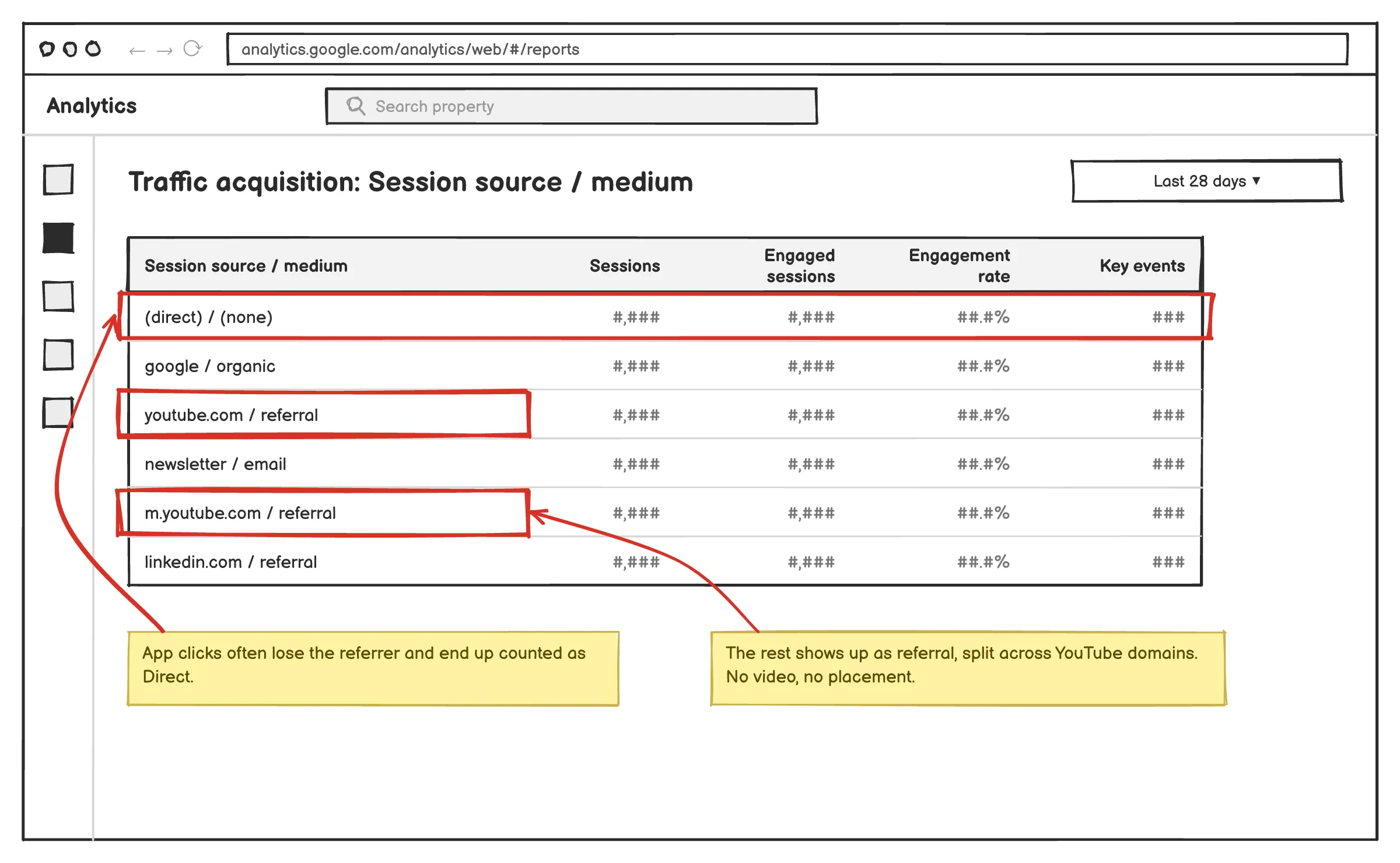
This post is how I’d set up UTM tracking for YouTube today, what I’d avoid, and where UTMs stop being enough.
Why Default YouTube Analytics Isn’t Enough for Marketers
YouTube Studio is great at what it’s built for. Watch time, retention, where people drop off, how many subscribed. I check it constantly.
But it’s built to tell you how your videos perform on YouTube. It’s not built to tell you what happens after someone leaves.
The Gap Between Views and Conversions
Here’s the part that surprises people: YouTube Studio doesn’t even tell you how many people clicked the links in your description. It stops at the edge of the platform.
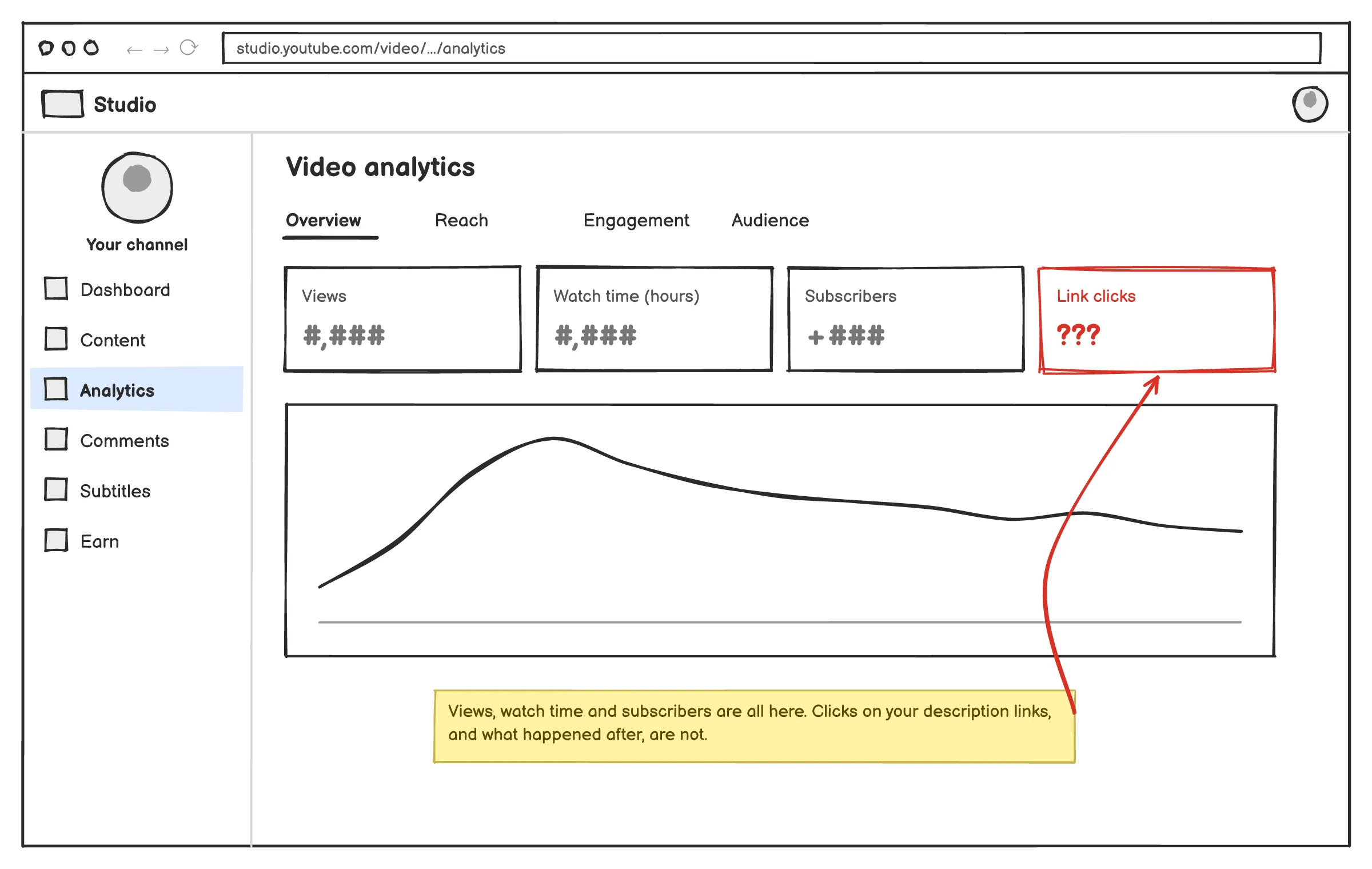
Imagine someone watches your video on their phone, clicks a link, browses your site, leaves, and then buys something three days later on their laptop. YouTube won’t connect those dots. GA4 probably won’t either, since the purchase happened on a different device. So you’re left with a revenue number and no real idea which video got things started.
If you can’t connect a video to a sale, you can’t make good decisions about what to make next. That was the itch that led me to build TubeTrack in the first place.
How UTM Parameters Solve the “Referral” Data Problem
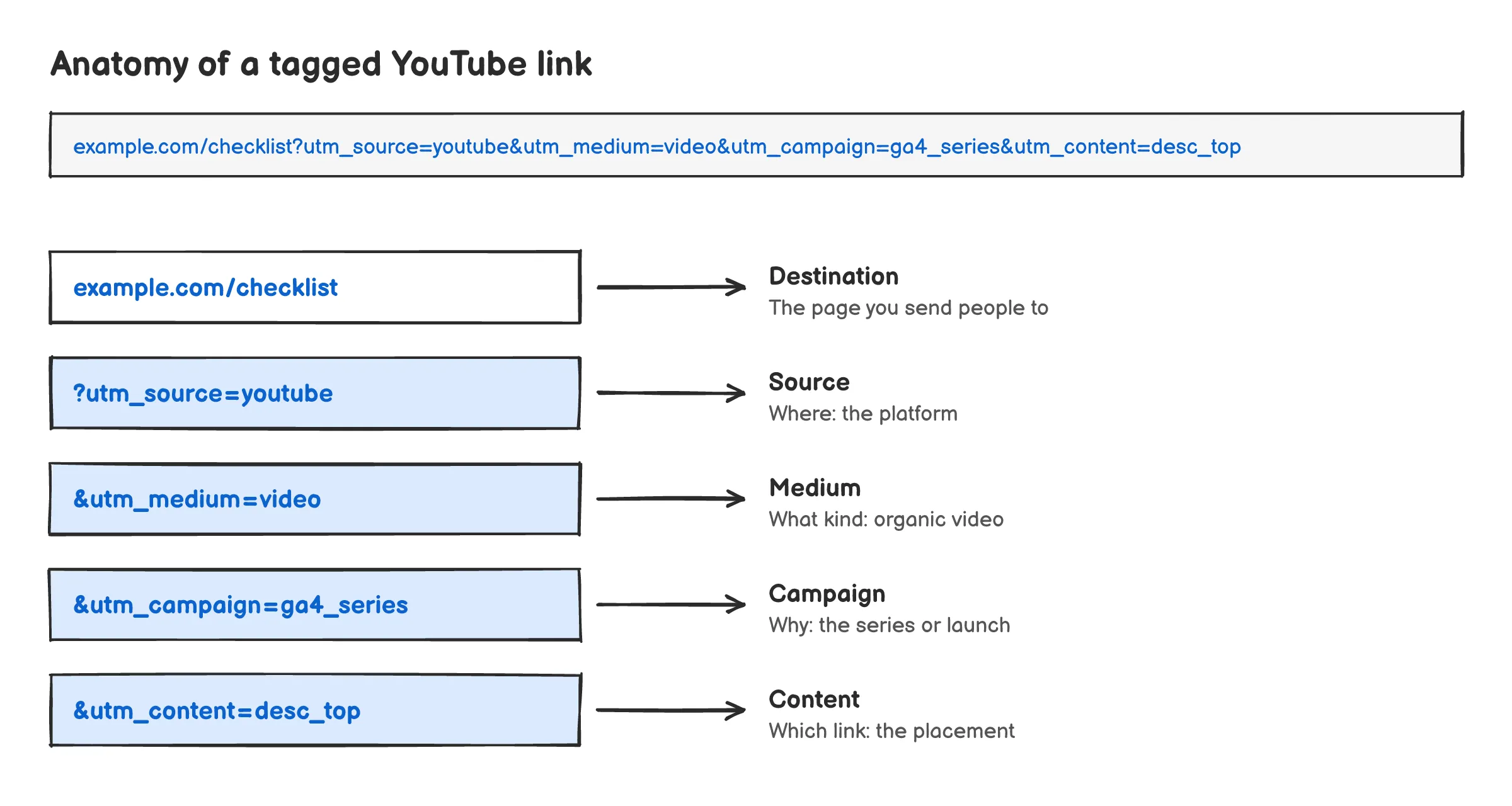
Ever wondered what those things after the question mark are when you land on a webpage? They’re called UTM parameters, and they help tracking tools identify where a user came from. Think of them as tiny tags added to the end of a URL—such as utm_source, utm_medium, or utm_campaign. When someone arrives through a tagged link, GA4 reads those tags and records the visit’s source, even if the original referrer is no longer available.
I want to be honest about what UTMs do and don’t do, though. You’ll see them described as “privacy-proof.” They’re not. They’re more robust than relying on the referrer, because the information travels in the URL itself. But GA4 still needs consent and its own first-party cookie to connect that visit to a later conversion. Ad blockers, declined cookie banners and device switches all still create gaps. UTMs fix the “where did this visit come from” problem. They don’t fix everything downstream of it.
Understanding Customer Acquisition Cost (CAC) for Video Content
Once your YouTube traffic is tagged properly, you can start asking the question that actually matters: what does it cost me to get a customer from YouTube?
For organic video, your “cost” is mostly production time, editing, maybe a freelancer. For ads, it’s spend. Either way, if you can tie leads and sales back to specific videos (ideally by passing UTMs into your CRM when someone signs up), you can see which types of content are pulling their weight and which are just nice to have.
In my experience, this is where a lot of creators get a wake-up call. The videos with the most views are often not the ones that sell.
Standardizing Your YouTube UTM Naming Convention
This is boring. Do it anyway.
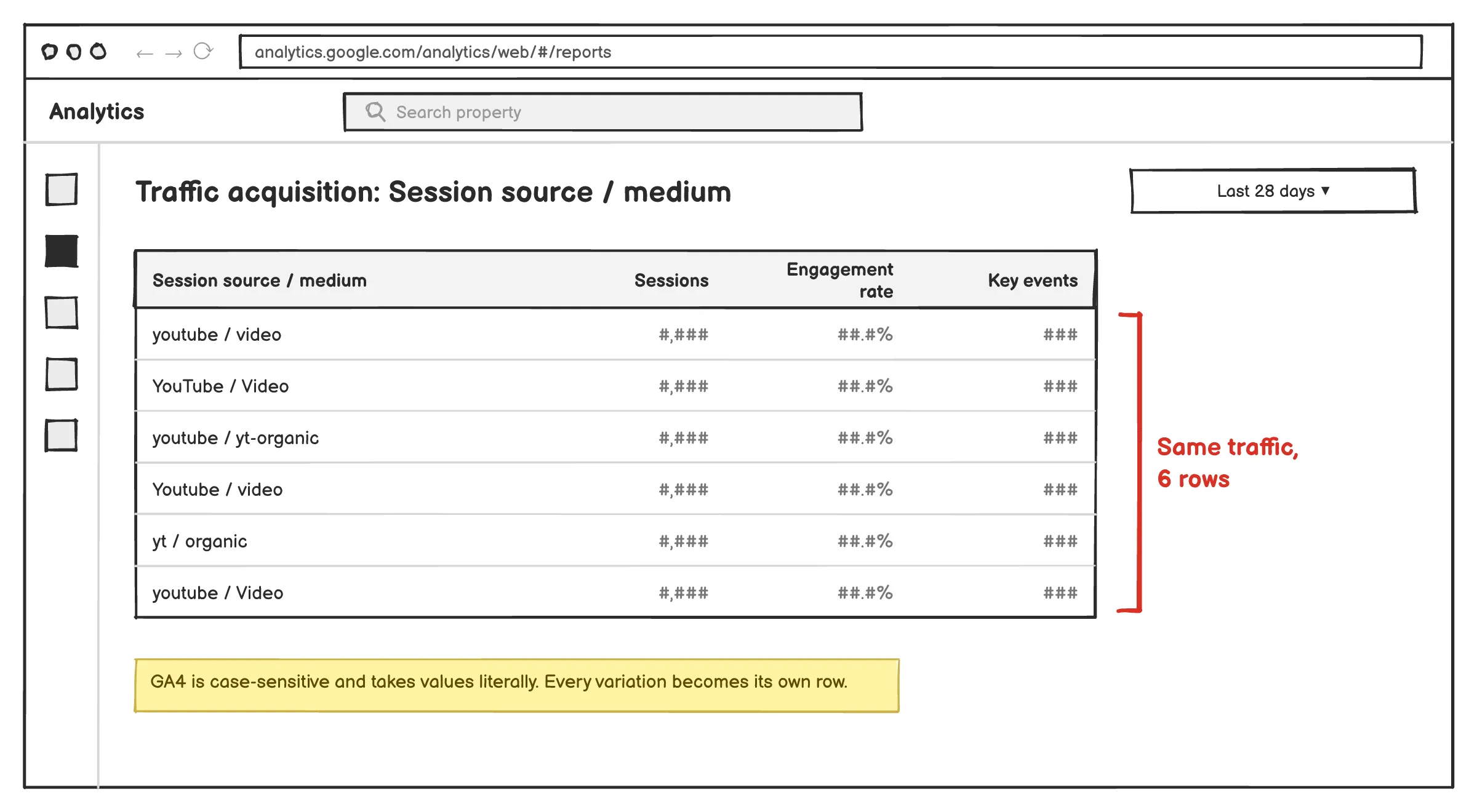
If you use utm_medium=video on one upload and utm_medium=YouTube-Organic on the next, GA4 treats those as two different things. Six months later, your reports are a mess and you’re cleaning them up in a spreadsheet at 11pm. Pick a convention, write it down, and stick to it.
UTM_Source: Identifying the Platform
Use utm_source=youtube. Lowercase, always. If you run more than one channel, don’t put the channel name here. Keep source as the platform and use campaign or content to separate channels.
UTM_Medium: Distinguishing Between Organic Video and Paid Ads
This is the one I see people get wrong most often, and the original version of this advice floating around the internet gets it wrong too.
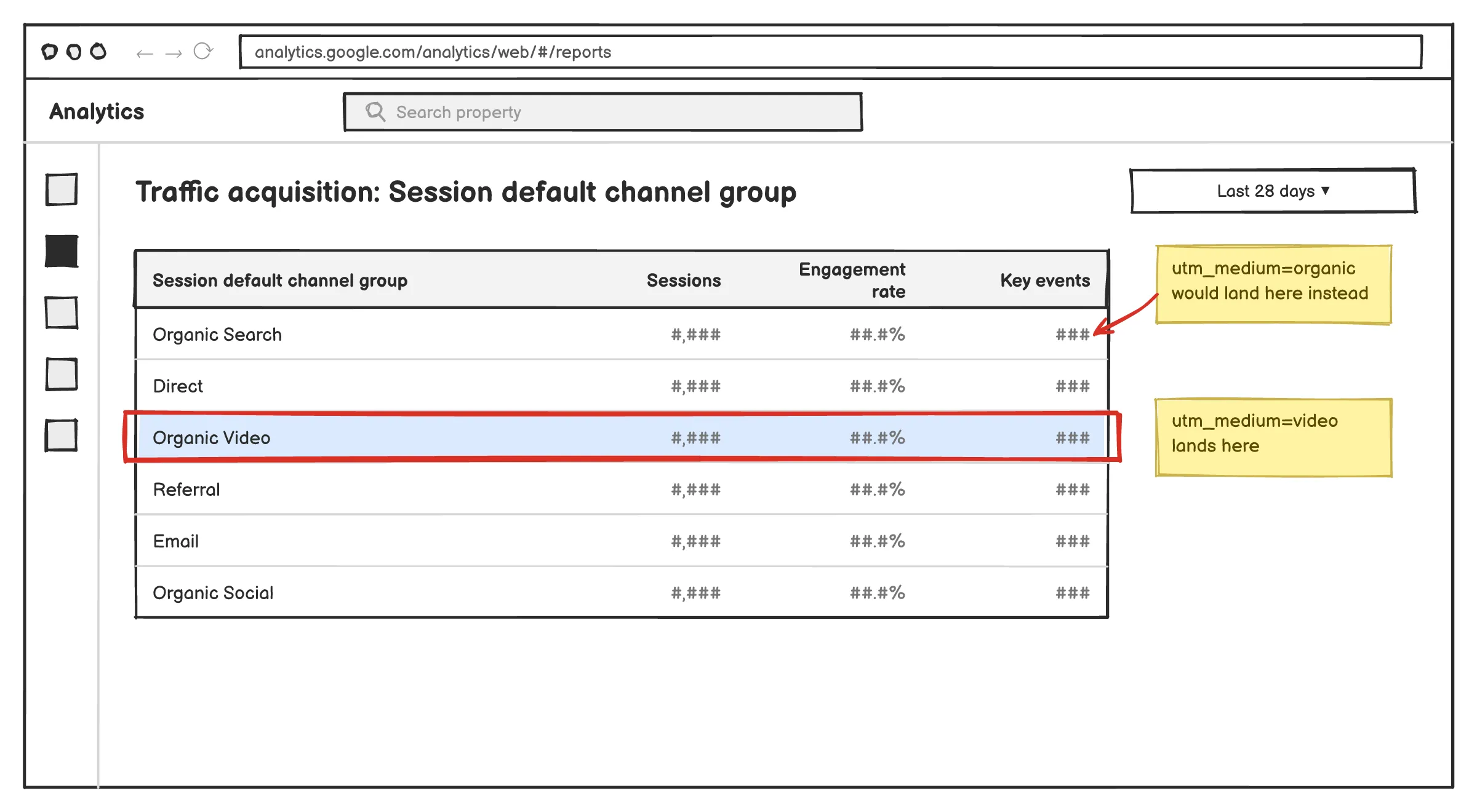
Don’t use utm_medium=organic. GA4’s default channel grouping reads “organic” as Organic Search, so your YouTube clicks end up counted as search traffic. Not what you want.
For organic uploads, use utm_medium=video. GA4 recognizes that and puts the traffic under Organic Video, which is where it belongs.
For YouTube ads run through Google Ads, I’d leave manual UTMs out of it and let auto-tagging do the work. Linking Google Ads to GA4 gives you better data than hand-built tags, and mixing both tends to cause confusion.
UTM_Campaign: Organizing by Product Launch or Content Series
Campaign is where I group videos by goal. Something like utm_campaign=course_launch_q3 or utm_campaign=ga4_series. The point is being able to answer “how did this whole push do?” and not just “how did this one video do?”
UTM_Content: Differentiating Placements Within a Single Video
This is my favorite one, because it’s where you learn things you didn’t expect.
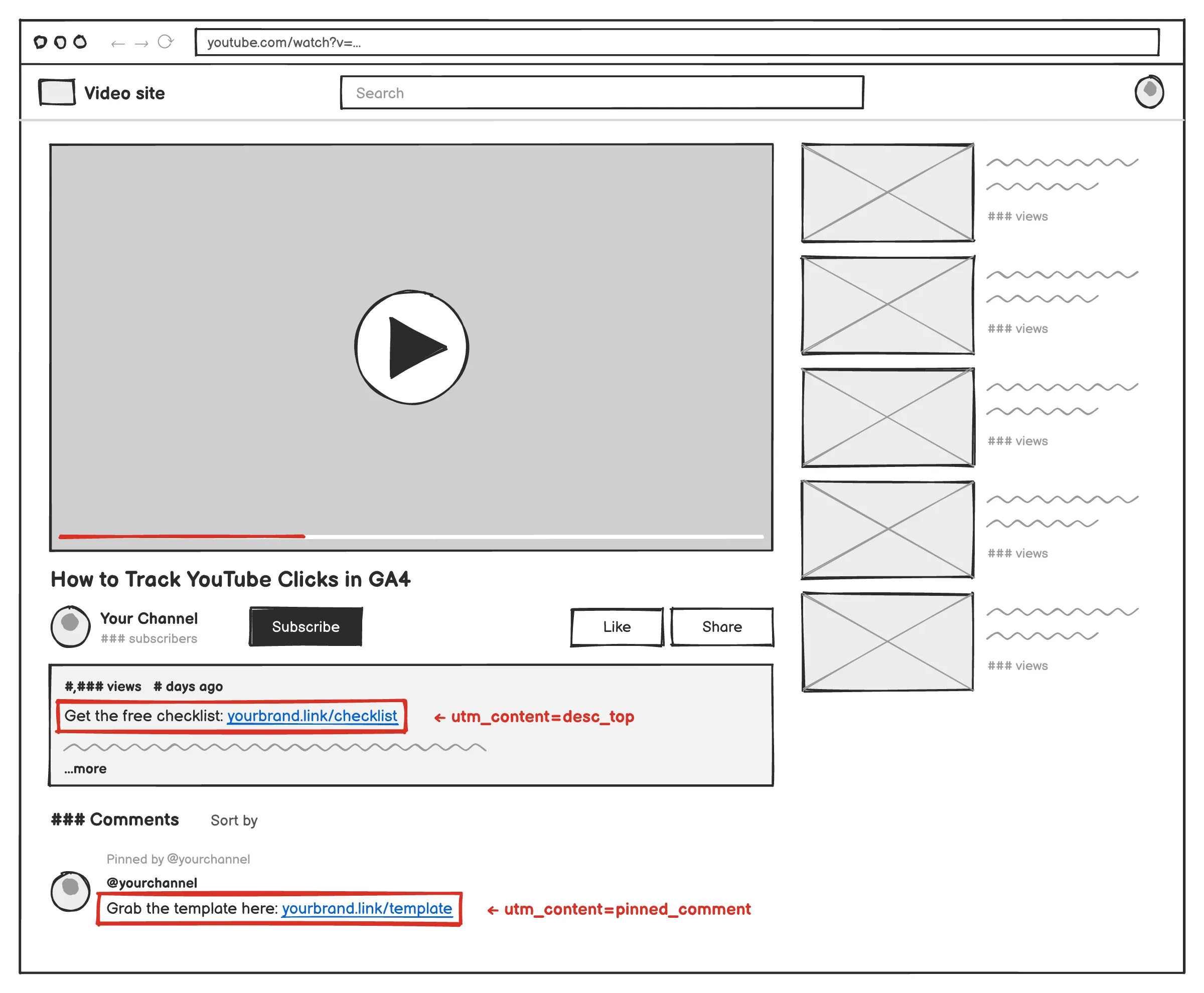
Use utm_content to say where the link sat. utm_content=desc_top, utm_content=pinned_comment, utm_content=community_post. If the same offer is linked from two places, you’ll see which one people actually click and which one leads to buyers. Those aren’t always the same.
A lot of people also put a video ID in here so they can tell videos apart. That works, but it means utm_content is doing two jobs. Decide up front which one you care about more, or combine them in a consistent format.
Asset-Based Implementation: Where to Place Your UTM Links
Every place a link can live on YouTube is a separate touchpoint. If you only tag the description, you’re missing part of the picture.
Video Descriptions: The Primary Traffic Driver
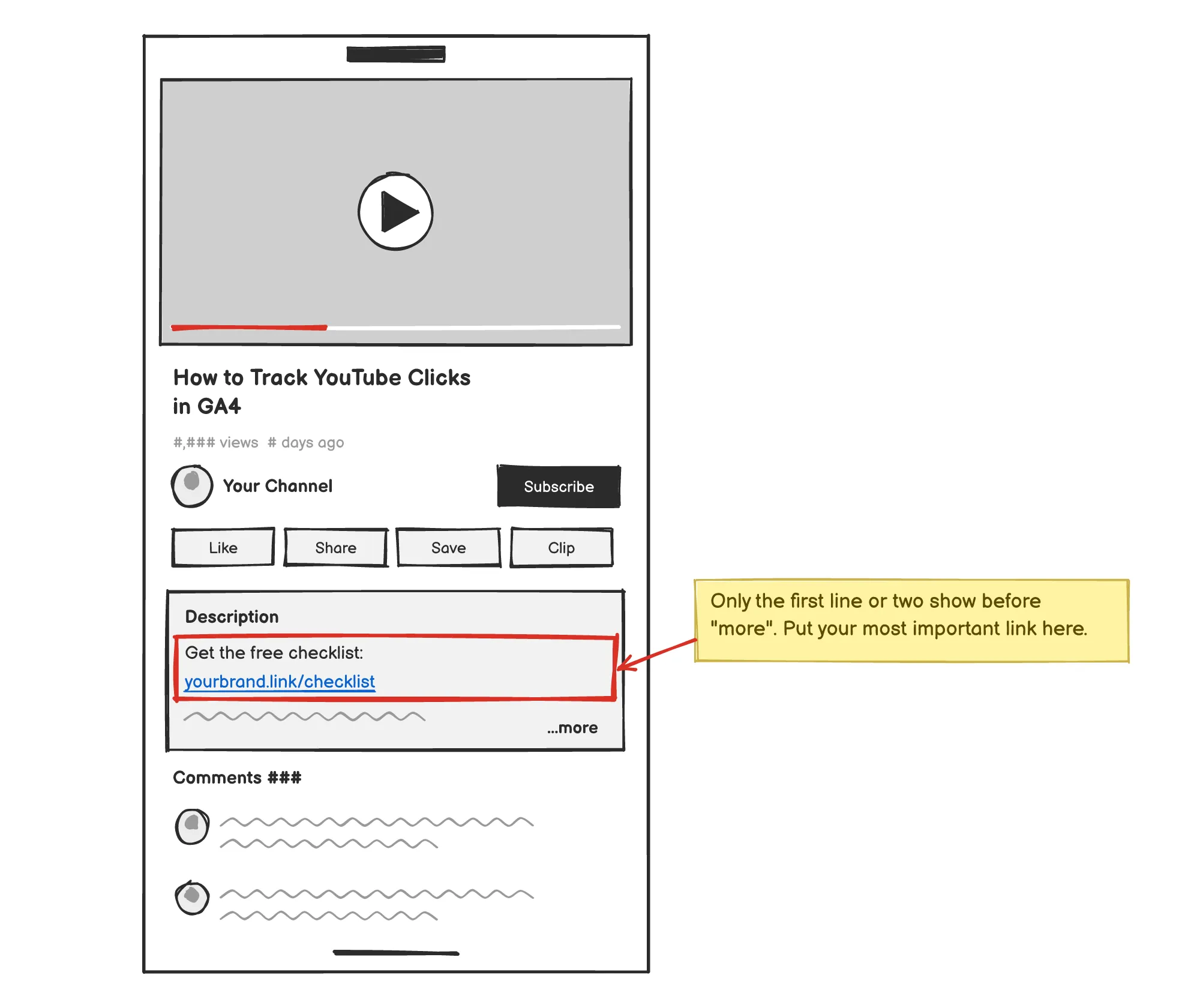
The description is where most of your clicks will come from. Put your most important link right at the top, because only the first line or two shows before someone taps to expand. After that, you’re relying on people who were curious enough to open it.
Pinned Comments: Maximizing Engagement and Click-Through Rate (CTR)
On mobile especially, the pinned comment can be more visible than the description. Give it its own tag (utm_content=pinned_comment) and compare it to your description link over a few videos. You’ll quickly see which one earns its spot.
YouTube Shorts: Tracking Traffic from the Shorts Feed
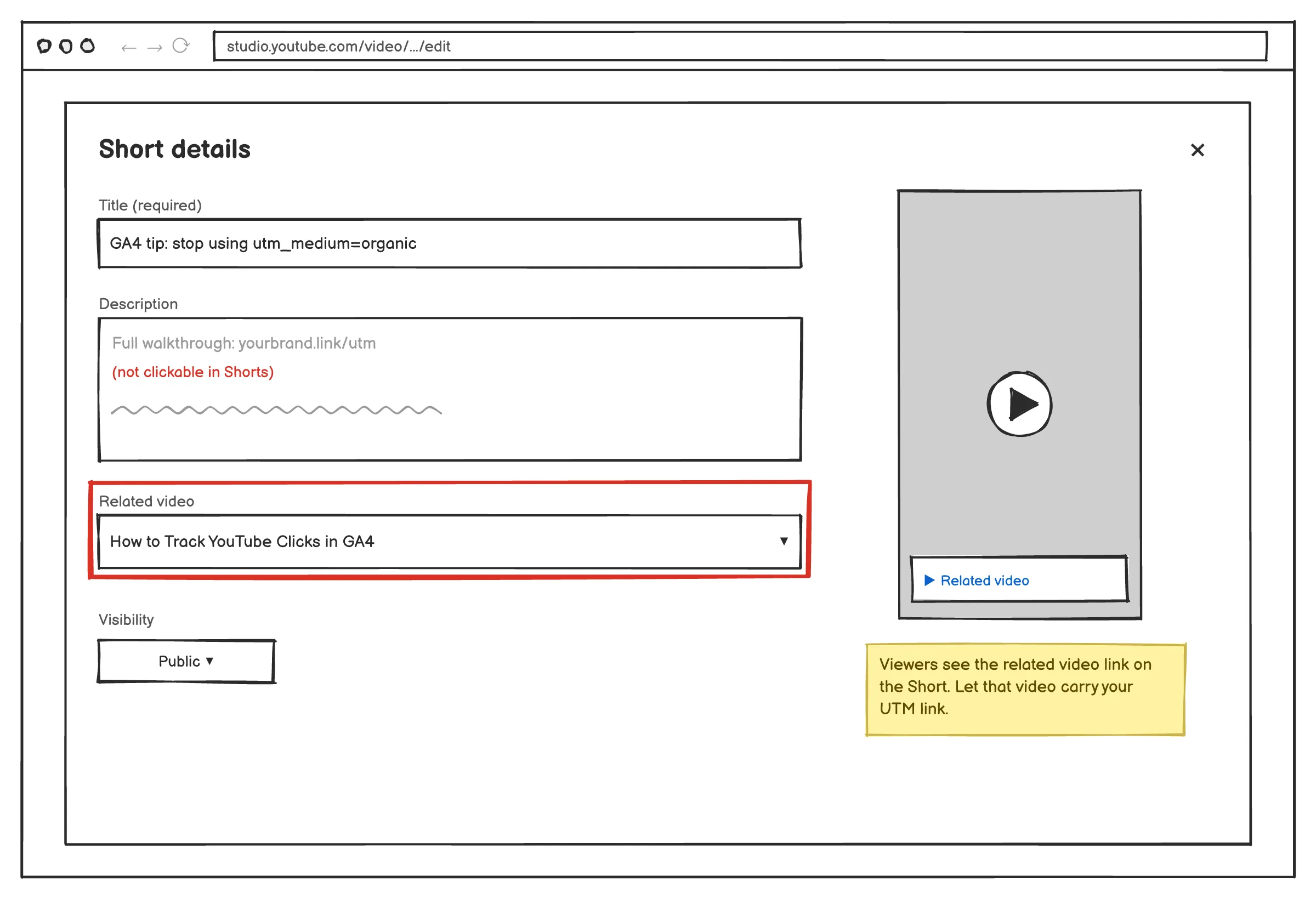
Here’s a correction to a lot of the advice out there: since 2023, YouTube doesn’t make external links clickable in Shorts descriptions or comments. So you can’t really drive direct clicks from a Short to your website.
What you can do is link the Short to a related long-form video, and let that video carry the link. It’s an extra step, but it’s the honest way to think about Shorts: as a discovery layer that feeds your long-form content, not as a direct traffic source.
Community Tab Posts: Measuring Audience Engagement Outside of Video
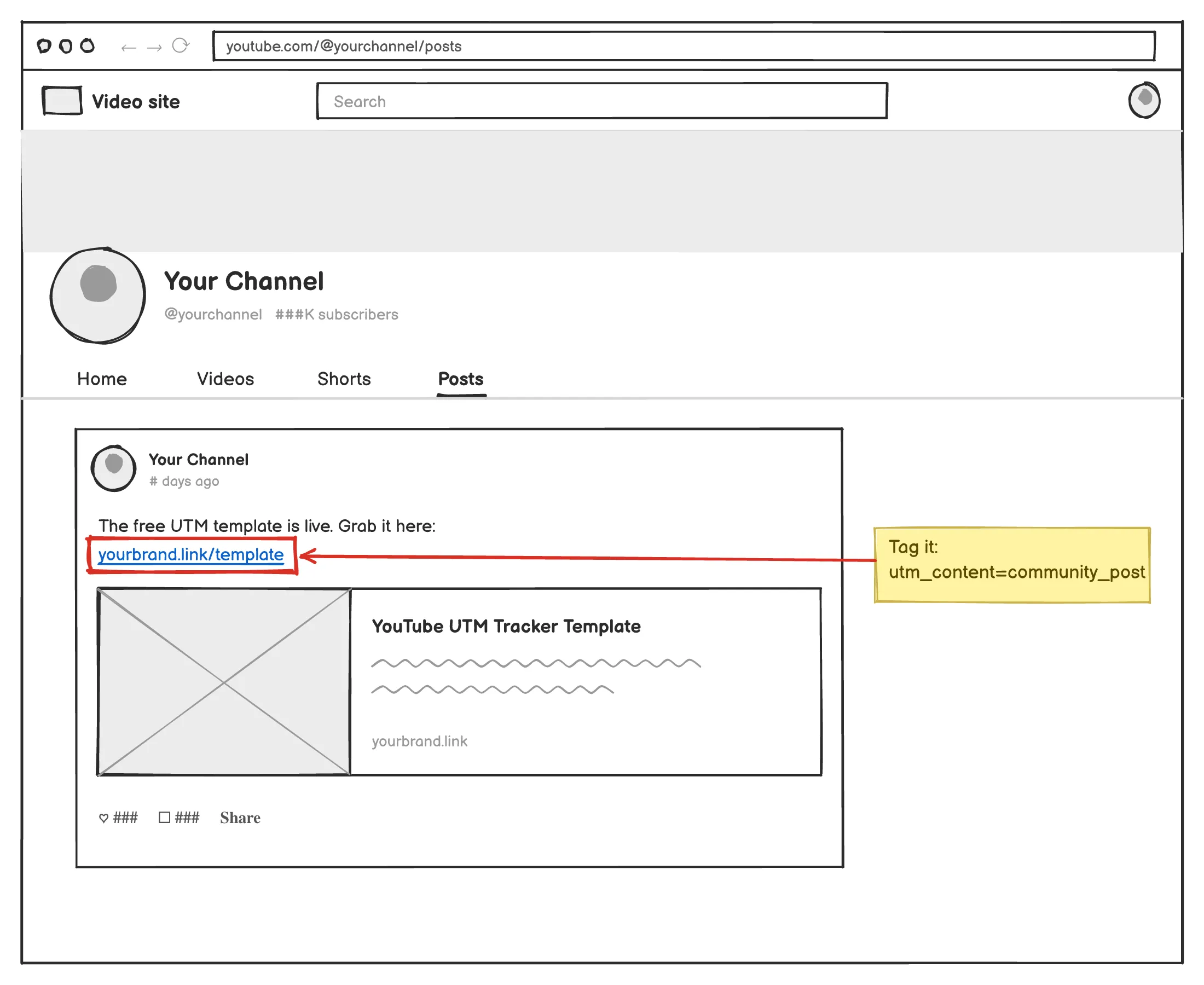
Community posts are underrated. They land in people’s feeds without needing a new video. Tag every link you share there (utm_content=community_post) so you know whether they’re actually driving anything or just collecting likes.
End Screens and Cards: Analyzing Mid-to-Late Video Interaction
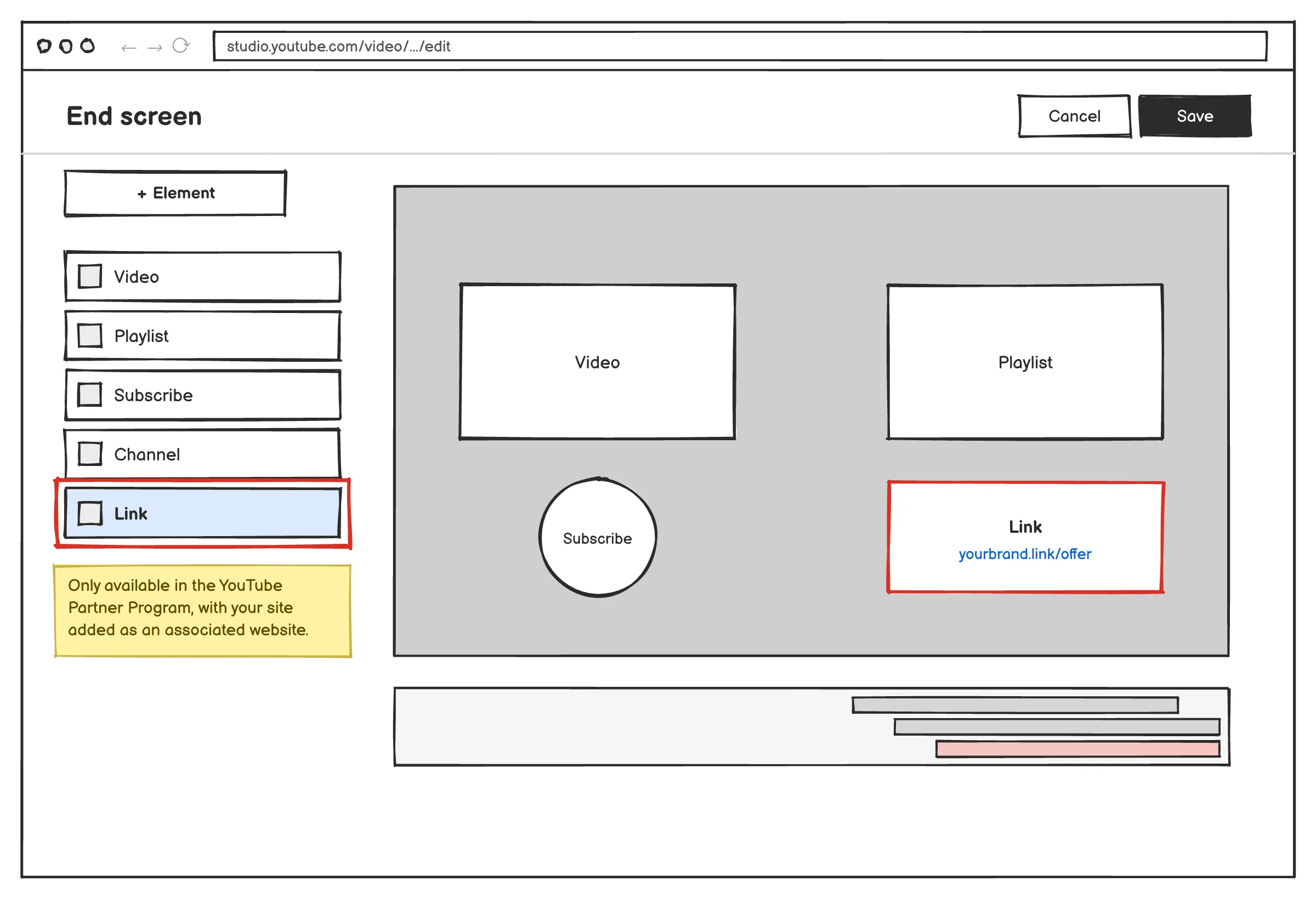
Worth knowing before you plan around these: end screens and cards can only link to external websites if you’re in the YouTube Partner Program and have your site added as an associated website. If that’s you, tag those links separately. Anyone clicking an end screen watched to the end, and that’s usually a pretty warm person.
If you’re not in YPP yet, use end screens to send people to your best-converting video instead.
Channel Page Links: Tracking Profile Visits and Brand Awareness
The links on your channel header and About section get less traffic than your videos, but they’re a nice signal of general brand interest. Tag them with something like utm_campaign=channel_profile and check on them once a quarter.
Technical Setup: Building Your YouTube UTM Tracking Codes
You don’t need anything fancy here. You need something consistent.
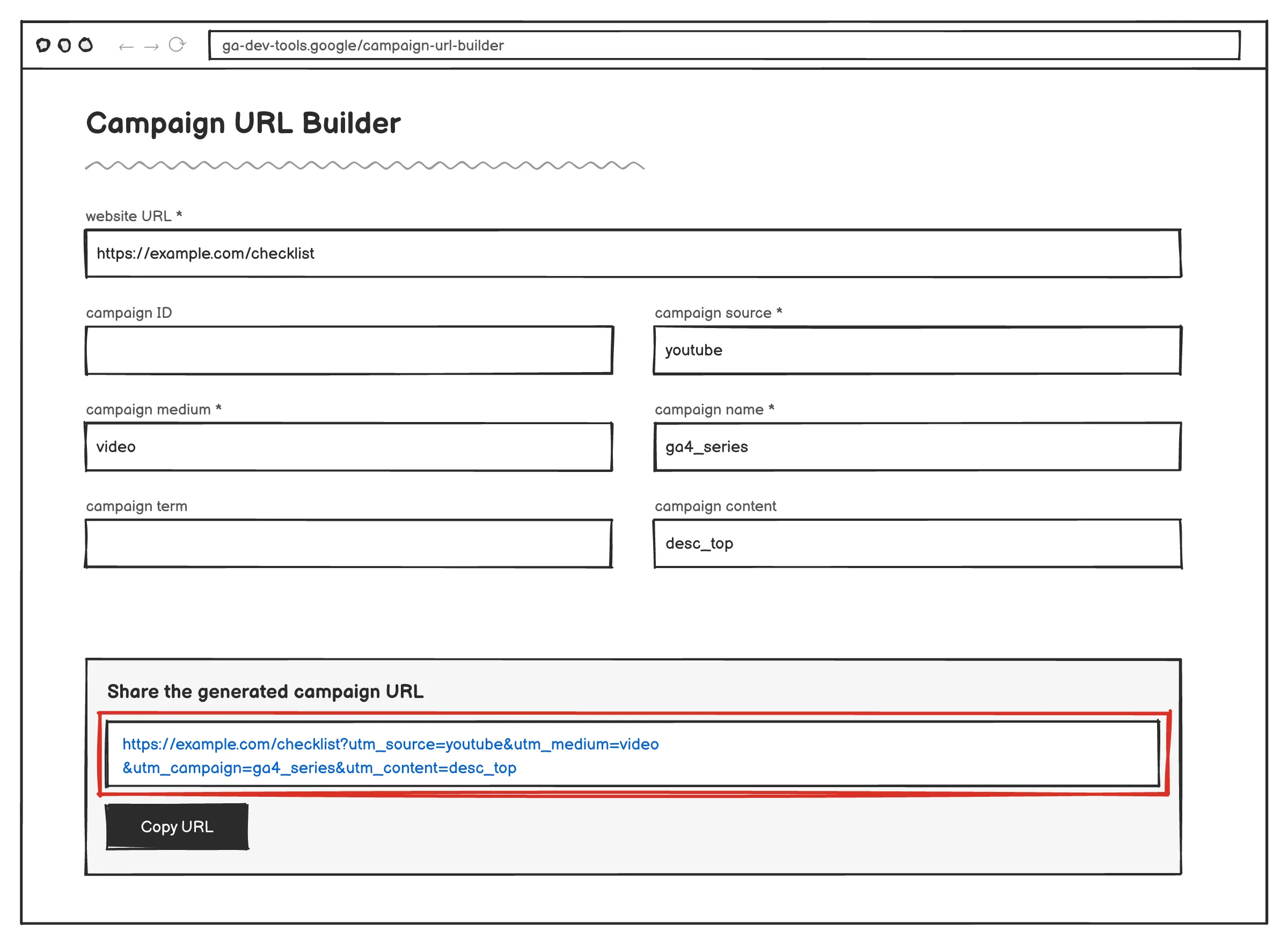
Using the Google Analytics DevTools URL Builder
Google’s Campaign URL Builder is free and does the job fine for one-off links. It formats everything correctly and saves you from typos. For a handful of videos, that’s all you need.
Creating a Google Sheets UTM Tracker for Bulk Video Management
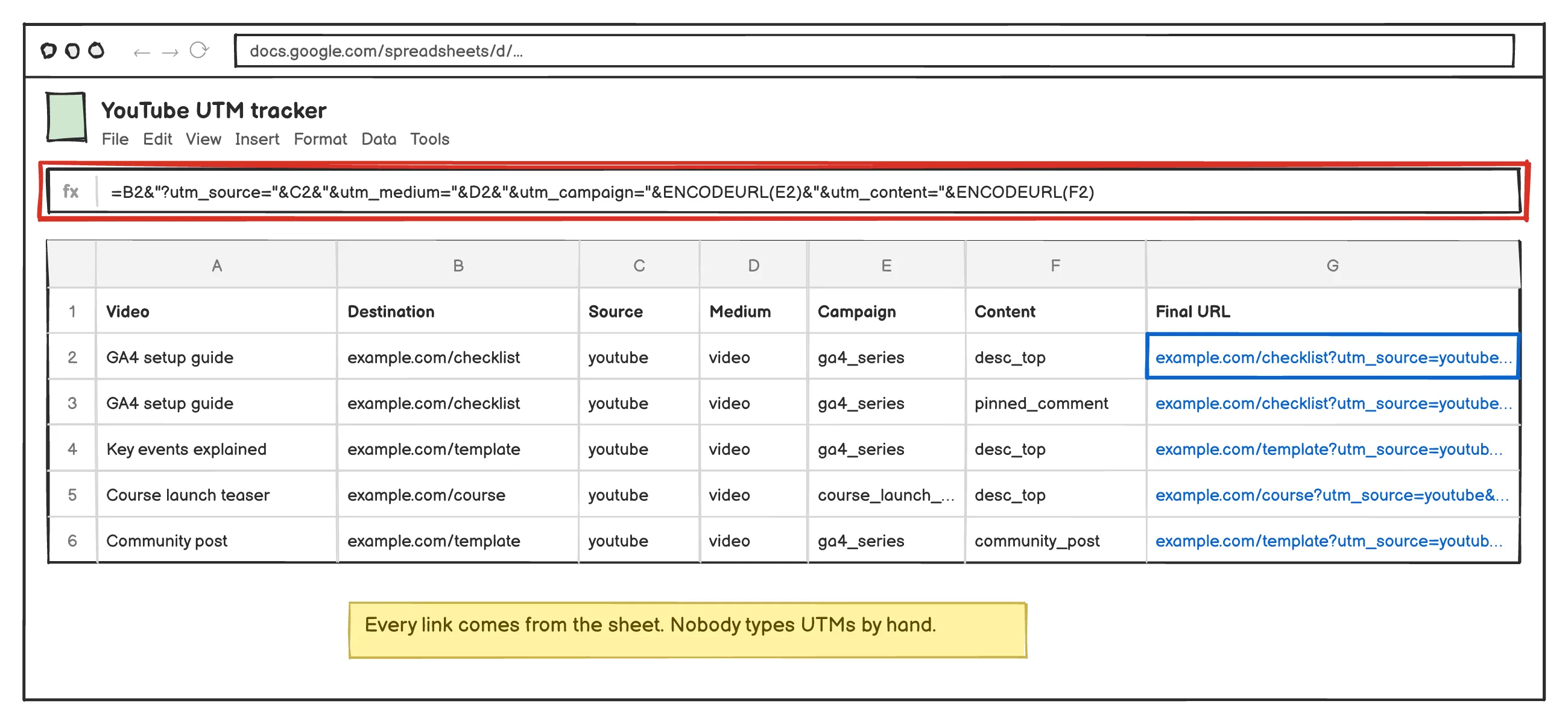
Once you’re publishing regularly, one-off links get painful fast. A simple Google Sheet works well: one column per parameter, and a formula that joins them into the final URL. I’d use the & operator or TEXTJOIN and wrap values in ENCODEURL so a stray space doesn’t break a link.
The sheet itself matters less than the rule that goes with it: every link comes from the sheet. Nobody types UTMs by hand.
Best Practices for Character Limits and Metadata Optimization
Keep it short, lowercase, and use underscores instead of spaces. GA4 is case-sensitive, so YouTube and youtube show up as two separate rows. Short values are also just easier to read when you’re scanning a report.
Managing the “Ugly Link” Problem
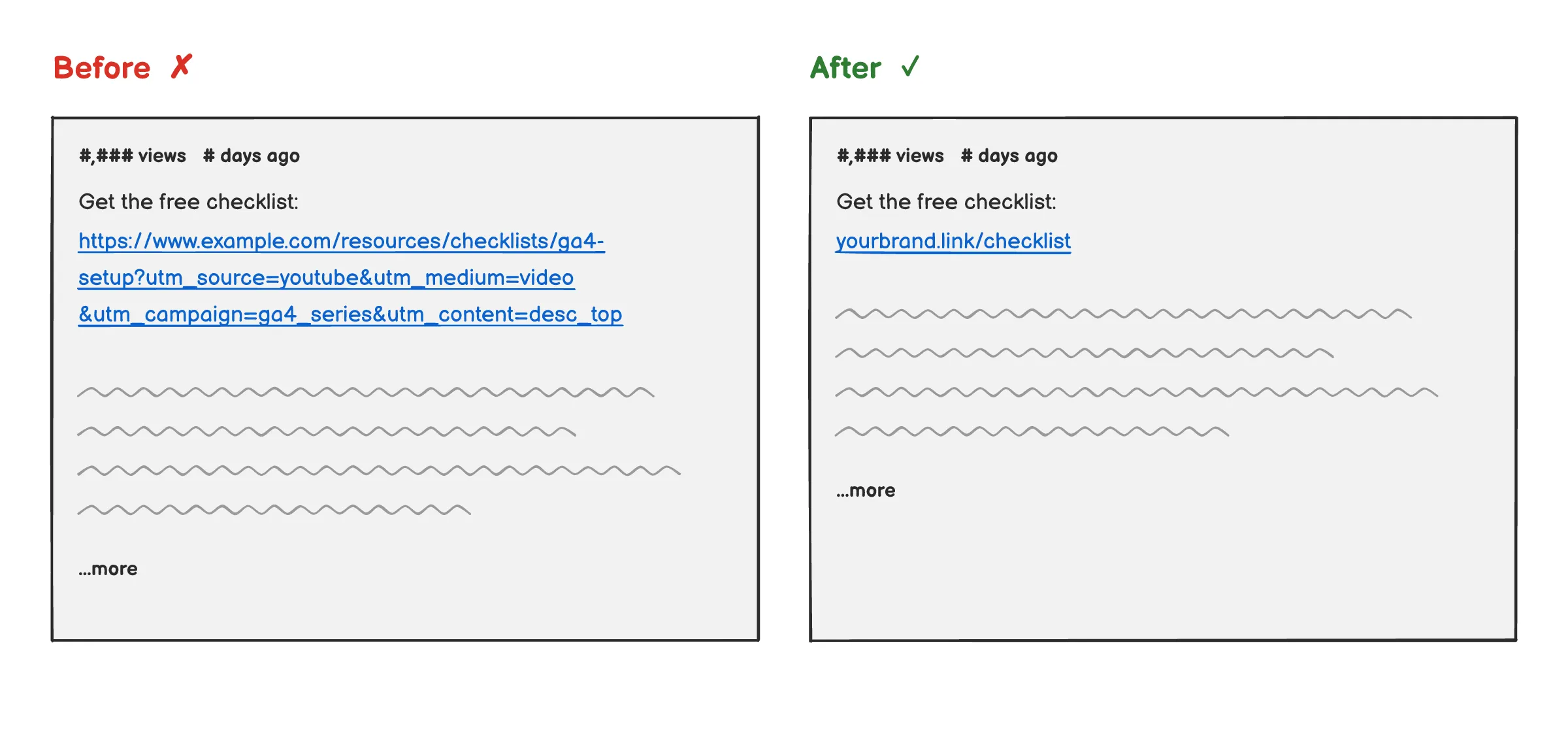
A tagged URL can easily hit 150 characters. Pasted raw into a description, it looks like spam.
The Impact of Long URLs on User Trust and CTR
People are cautious about clicking links that look weird, especially on a phone where the URL wraps across three lines. You worked hard to get someone interested enough to click. Don’t lose them to a messy link.
Using Branded Link Shorteners (Bitly, Rebrandly)
Shorteners like Bitly or Rebrandly solve the looks problem. You put the full tagged URL in, get a short branded link out, and the UTMs pass through on the redirect.
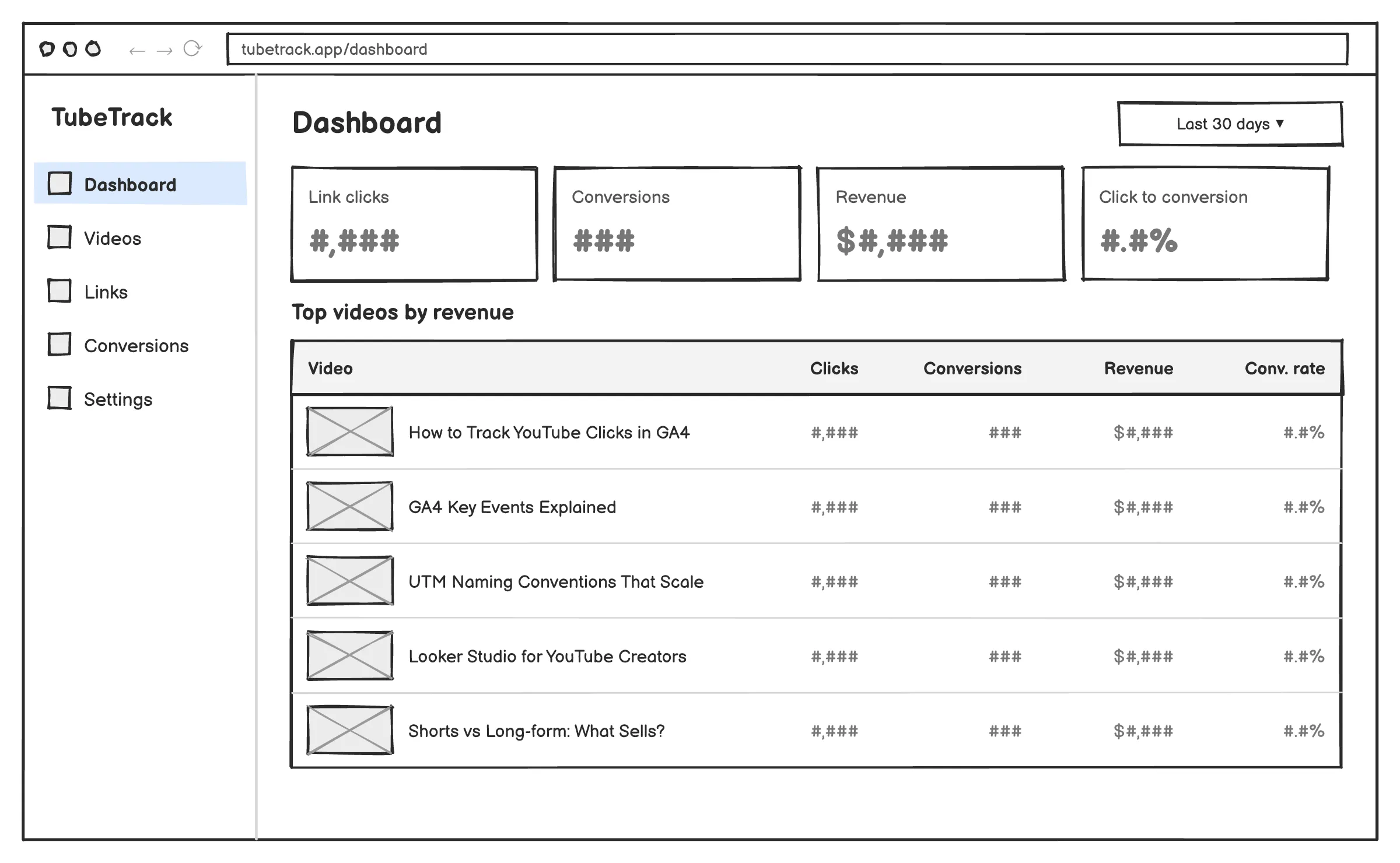
The downside is that they don’t know anything about YouTube. You get click counts, but you’re still stitching together which video, which placement, and what happened after the click on your own. That’s the gap I built TubeTrack for: short links made for YouTube, with clicks tied back to the video they came from, and then followed through to conversions.
Setting Up Intermediate Tracking Pages or Redirects
This one’s easy to overlook until it bites you. If you link straight to a product page and that page moves, every old video now points at a 404. With a redirect in the middle (from a shortener, your own server, or TubeTrack), you change the destination once and every video updates. After a few years of publishing, that’s not a nice-to-have. It’s the only sane way to manage your back catalog.
Analyzing YouTube Campaign Performance in Google Analytics 4 (GA4)
Setting up tags is the easy part. Actually looking at the data every week is where most people fall off.
Navigating the Traffic Acquisition Report
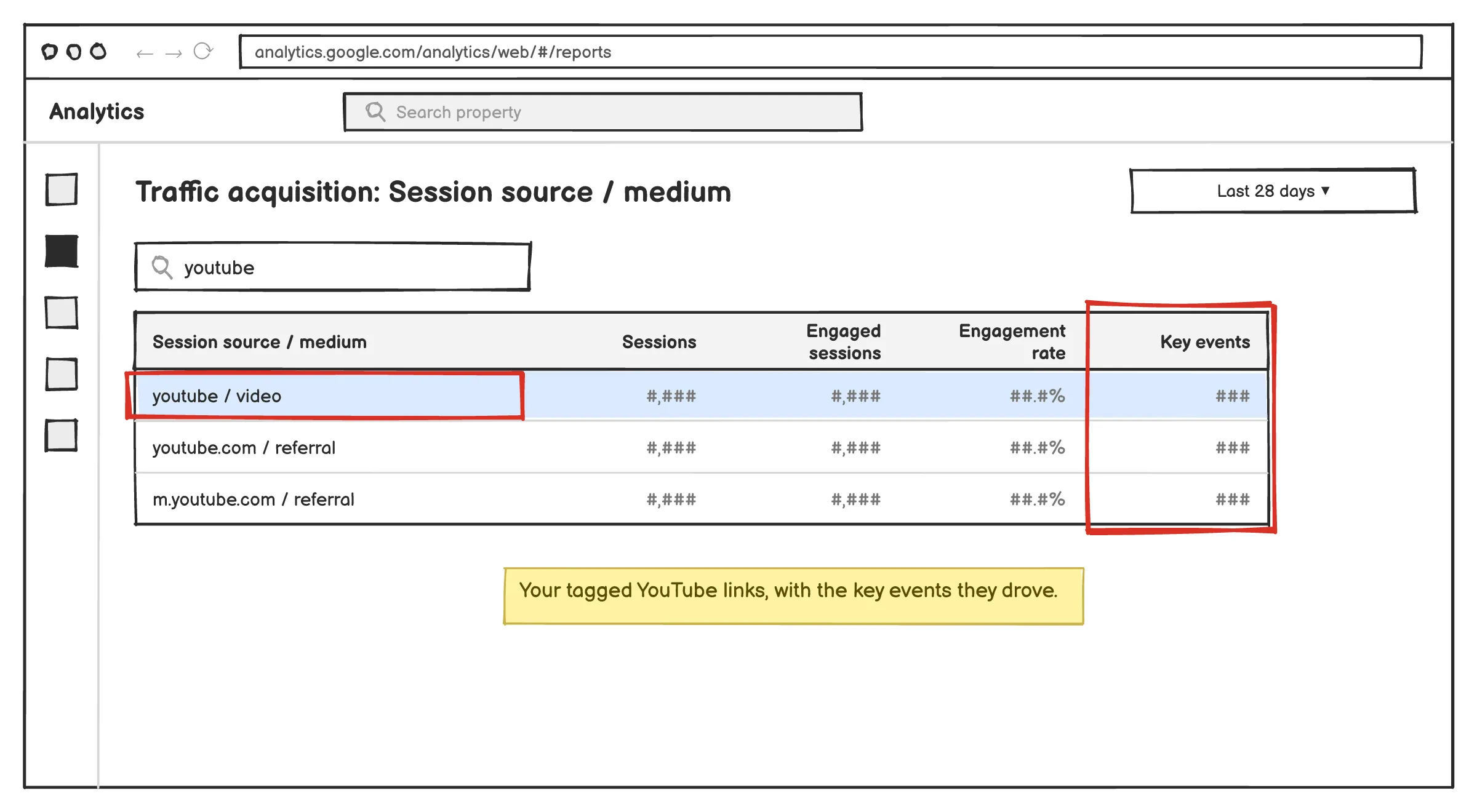
In GA4, go to Reports > Acquisition > Traffic acquisition. Switch the primary dimension to “Session source / medium” and look for youtube / video. That shows you sessions, engagement and key events (what GA4 used to call conversions) from your tagged YouTube links.
Using Primary and Secondary Dimensions (Session Manual Campaign)
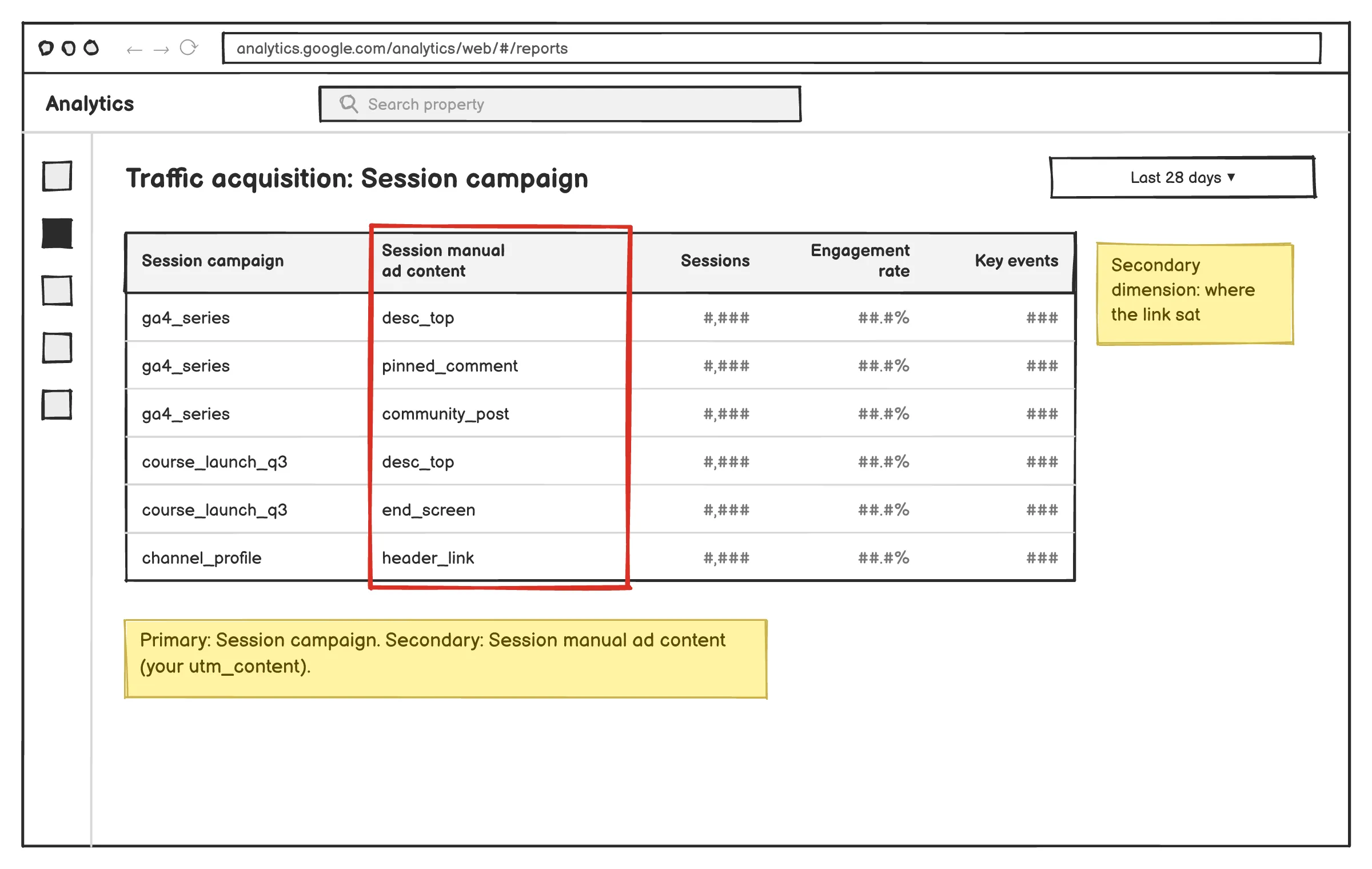
To see individual campaigns, set the primary dimension to “Session campaign.” Then add “Session manual ad content” as a secondary dimension to break it down by utm_content. That’s where you’ll see pinned comment versus description, or one video versus another.
If you find yourself doing this a lot, build an Exploration with those dimensions saved so you’re not rebuilding it every time.
Identifying Traffic Routes and User Engagement Patterns
Look at engagement rate and key event rate side by side. A video that sends lots of traffic that bounces straight away usually means the link promised something the page didn’t deliver. A video with modest traffic but a strong conversion rate is telling you something about that topic, that audience, or that call to action. Make more of those.
One thing to keep in mind: GA4’s default attribution gives credit to the last touchpoint. YouTube is often where someone first hears about you, not where they finally buy. So if your YouTube numbers look low, it might not mean YouTube isn’t working. It might mean it’s doing the early work and something else is getting the credit.
Conclusion
None of this is hard. It just takes a bit of discipline: a naming convention you actually follow, a clean way to create and manage links, and a habit of checking the numbers.
If you’re starting from zero, I’d do this: take your next five uploads, tag every link with the convention above, and look at the results in GA4 once a week for a month. You’ll learn more about what your channel actually does for your business in those four weeks than from a year of staring at view counts.
And if you want the YouTube side handled for you (link creation, per-video click data, conversions tied back to the video), that’s what we’re building at TubeTrack.